On this page
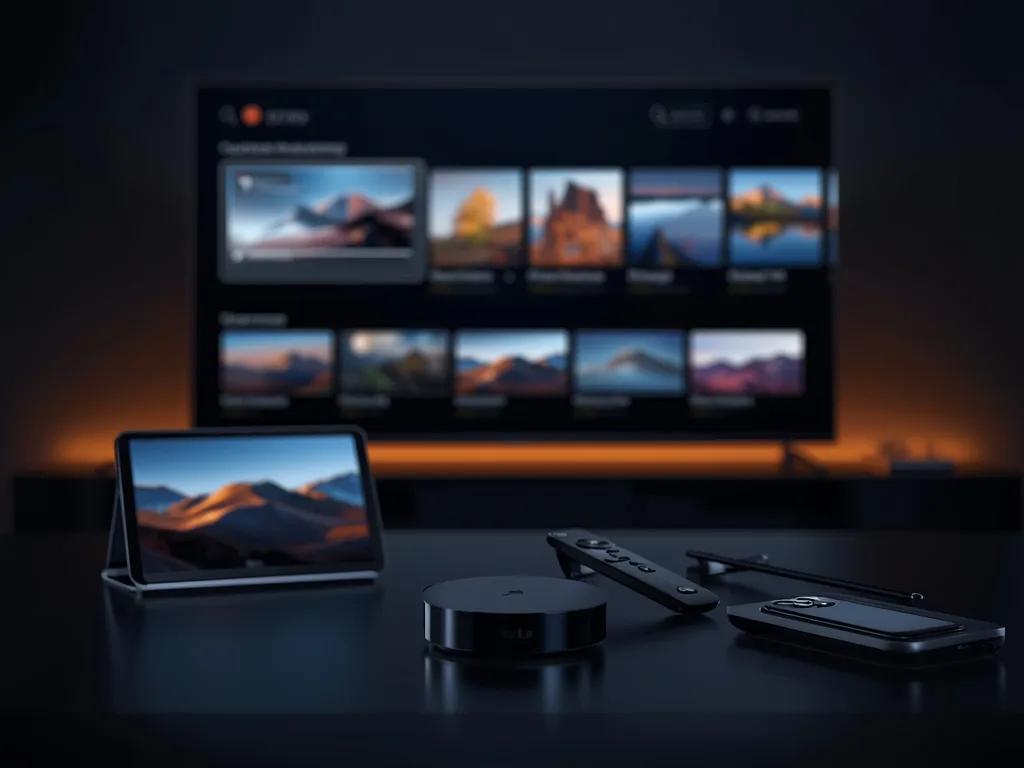
Apple devices make a pleasant way to watch IPTV: the interface is smooth, the apps come through one official store and updates arrive automatically. If your household already uses an iPhone, an iPad or an Apple TV, you may not need to buy anything extra to get started. This guide covers how it works on each device, how to set up a player app and how to keep playback smooth.
As always, remember the two parts: a player app on the Apple device and an IPTV subscription that supplies the login or playlist. Our player apps comparison explains the difference in detail.
Apple TV, iPhone and iPad: What Is Different
Apple TV is a set-top box that connects to your television and runs apps from the tvOS App Store. The iPhone and iPad run iOS and iPadOS apps from the App Store. They are different platforms, so an app may exist on one and not the other, or have a different layout on each.
| Device | Best for | Things to watch |
|---|---|---|
| Apple TV | Living-room viewing on a large screen | Typing details with the remote is slow; use the Remote app or a keyboard |
| iPhone | Portable viewing and quick checks | Small screen; mobile data use if you leave Wi-Fi |
| iPad | Bedroom, kitchen or travel viewing | Battery life and Wi-Fi quality |
Swipe to see more →
Apple publishes full guides for its own devices, including Apple TV support and user guides, which are useful for software updates and settings.
Step 1: Choose and Install a Player App
Open the App Store on your device and search for a player app that supports IPTV logins, such as IPTV Smarters Pro or IBO Player, which are popular options. Availability can vary by device type and region, so check that the app lists your device as compatible before installing.
One advantage of the App Store is that apps are reviewed by Apple and installed without needing to change security settings, which makes the process simpler than on some other platforms.
Step 2: Add Your Subscription Details
Open the app and choose to add a playlist, or sign in with Xtream Codes details, then enter your server address, username and password exactly as supplied. On iPhone and iPad, you can copy details from an email or message and paste them in, which avoids typos. On Apple TV, the iPhone can act as a keyboard: when a text field appears, a notification offers to type on your iPhone instead of using the remote.
Typing mistakes to avoid
- Autocorrect changing a username or password into a real word
- A capital letter added at the start of a field automatically
- A space left at the end after pasting
- A missing http prefix at the start of a server address
If the app reports a connection failure, retype one field at a time. Autocorrect is the most common culprit on iPhone and iPad, so consider turning off auto-capitalization while entering details.
Step 3: Check Playback and the Guide
Once the channel list has loaded, which can take a minute on a large subscription, test a few channels, check the programme guide shows current listings and confirm that sound and picture are in sync. Create a favourites list for the channels you watch most so you can reach them quickly.
- On Apple TV, check the video output settings match your television
- Test a movie and a live channel to compare playback
- Leave the app open for a few minutes to confirm the stream is steady
Keeping Playback Smooth on Apple Devices
Apple hardware is capable, so problems nearly always come from the network. Apple TV supports Ethernet on models that include a port, and a wired connection is the most reliable option. On iPhone and iPad, stay close to the router and consider whether other devices are using the same Wi-Fi heavily.
Our guide to how much internet speed IPTV needs explains practical targets, with about 15 to 20 Mbps of steady speed per HD stream as a planning figure.
Away from home
Streaming live video over mobile data uses a lot of data, so check your plan's allowance before using it for long viewing. Public Wi-Fi in cafes and hotels is often slow or restricted, which can cause buffering that has nothing to do with the app or the service.
Handy Apple Features for IPTV Viewing
Apple devices have a few built-in conveniences that make IPTV nicer to use. On Apple TV you can use the Remote in Control Centre on your iPhone to move around menus and type, which is far quicker than the small remote. On iPhone and iPad, a picture-in-picture mode in some apps lets a stream keep playing in a small window while you check something else.
You can also mirror or cast a stream from an iPhone or iPad to a TV using Apple's AirPlay, where the app supports it. This is useful for guests or a spare TV, but it ties up your phone and depends on both devices sharing the same network, so for regular viewing a dedicated app on the Apple TV itself is steadier.
Finally, remember to keep the device software current. Apple regularly updates tvOS and iOS, and those releases include video playback and networking fixes that can resolve odd behaviour without you changing anything else.
Using Royal Stream IPTV on Apple Devices
Royal Stream IPTV works with standard Xtream Codes and M3U player apps, so a compatible app from the App Store can use it on Apple TV, iPhone and iPad. Our device pages for Apple TV and iPhone and iPad give a short setup summary, and the pricing page shows how many screens each plan allows, which matters if the whole family watches at once.
Troubleshooting Quick Reference
| Problem | Try this |
|---|---|
| App will not open the playlist | Retype details, check for stray spaces and autocorrect changes |
| Channels buffer | Move closer to the router or use Ethernet on Apple TV |
| Guide looks empty | Wait for the first load to finish, then refresh the playlist |
| App crashes | Update the app and the device software, then restart |
| No sound or odd audio | Check the audio output and language track in the app |
Swipe to see more →
Final Thoughts
Apple devices make IPTV setup straightforward: install a player app from the App Store, enter your details carefully, give the first load time and keep your network healthy. Whether you watch on a big screen with Apple TV or on a phone while travelling, the same simple checks will keep things running smoothly. Test with a trial first so you know it works on your actual devices.